
ow that you know how to create a new page, we’ll show you how to build your first page in Elementor using flexbox containers. Containers replace the previous system of sections and columns, providing an easier and more flexible way to build a web page.
Before starting, you should familiarize yourself with the layout of the Elementor Editor if you haven’t already.
You may also want to familiarize yourself with the concept of containers.
Let’s start building
Now it’s time to get your hands “dirty” – so we’ll start by building what’s called a “Hero section”. Hero sections are big prominent elements, usually found at the top of the page. They’re designed to attract visitors and keep them on your site.
We’ll be building a hero section based on one that can be found in our template library, available for all Elementor Pro and Cloud users.
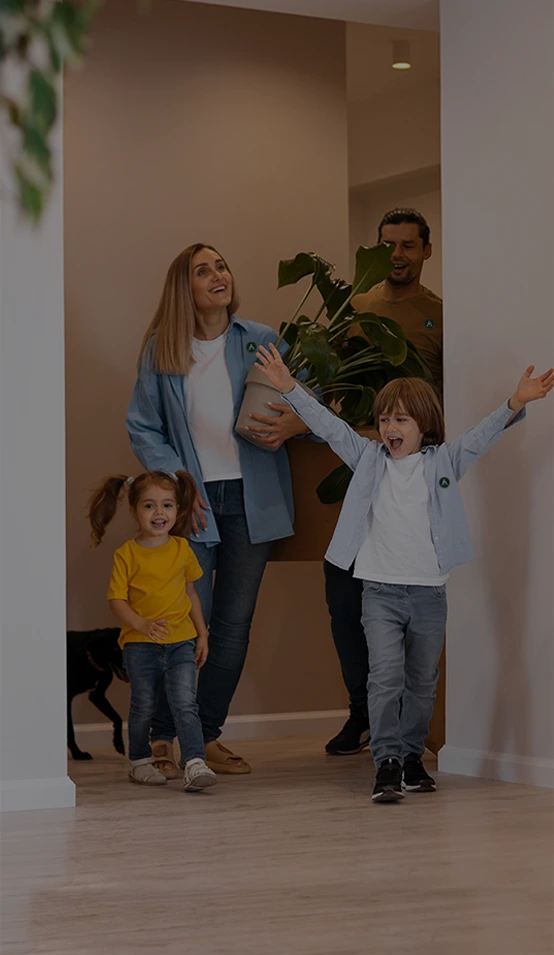
A good hero section starts with a great image, video or slideshow. In this case we’ll start with a photo. If you want to follow along, you can click the image below and save it to your desktop, for use as the background image.
Creating the hero section
First thing we’ll need to do is create a container to hold your hero section.
- Click the
icon to create a layout for your container. (Clicking the folder icon would start the process of importing a template, but we’re going to build this section from scratch).
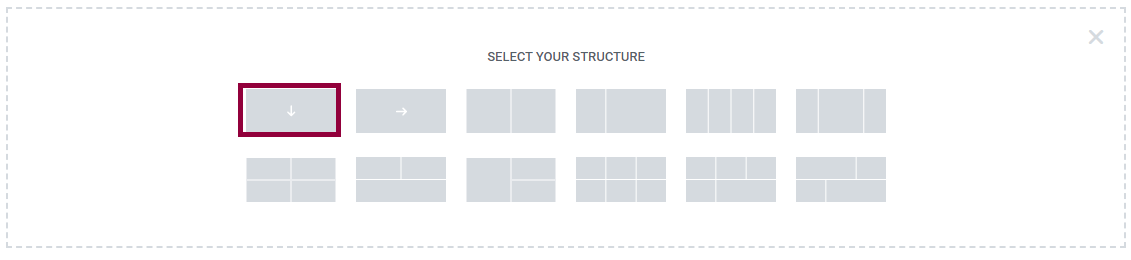
- Now we need to select a container structure. For now, we’ll keep it simple and use one container – however, we still need to choose if the container will have a row or column structure. In our case, the elements are going to be arranged vertically, so we’ll choose the column layout.
Okay, now it’s time to shine. Let’s add the image to your Hero section. There are several ways to add an image to a container but, in this case, we’ll add the image as a background This way we’ll make sure the image fills up the entire container.
When you created the new container, The panel on the left side of the screen should have turned into an Edit Section panel.
If it didn’t, click the dot icon in the blue tab above the container.
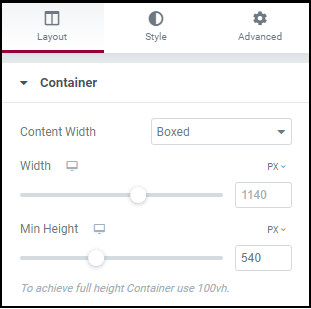
- We want our hero section to take up the entire screen, so we’ll keep the content width set to Boxed with a Width of 1140 PX and a Min. Height of 540PX. (Learn more about the different measuring units).
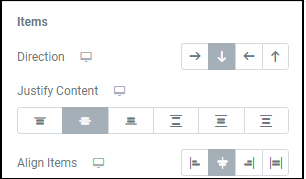
- The text in our Hero section is in the middle of the screen, so let’s set Justify Content and Align Items to Center.
Now it’s time to add the background image. For containers, the background image can be found in the Style tab.
Learn more about all the options available to you with flexbox containers. - Select the Style tab and choose the Classic background type.
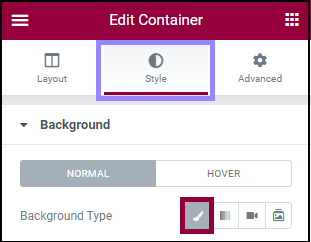
Once you’ve done that, you’ll be able to add an image by clicking the image icon.
This will open your media library. In WordPress, best practice is to add media through the media library so that’s what we’ll do. - To add the image you downloaded to your media library click Upload Files and then Select Files.
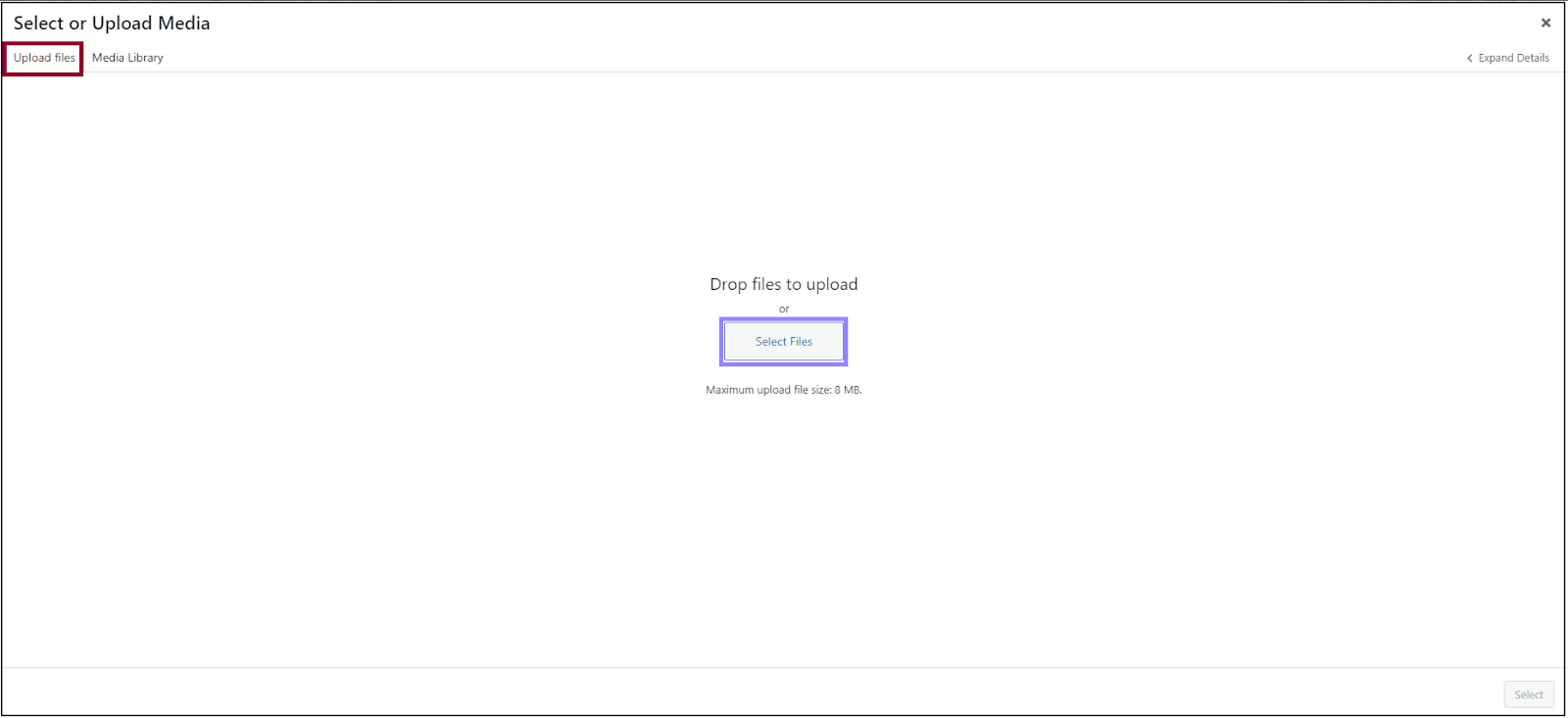
- Navigate to the file you selected and click Open. This will add the image to your media library. Although it’s optional, best practice is to add Alt Text and a caption. This will help your SEO and make your site more accessible. Then click Insert Media.
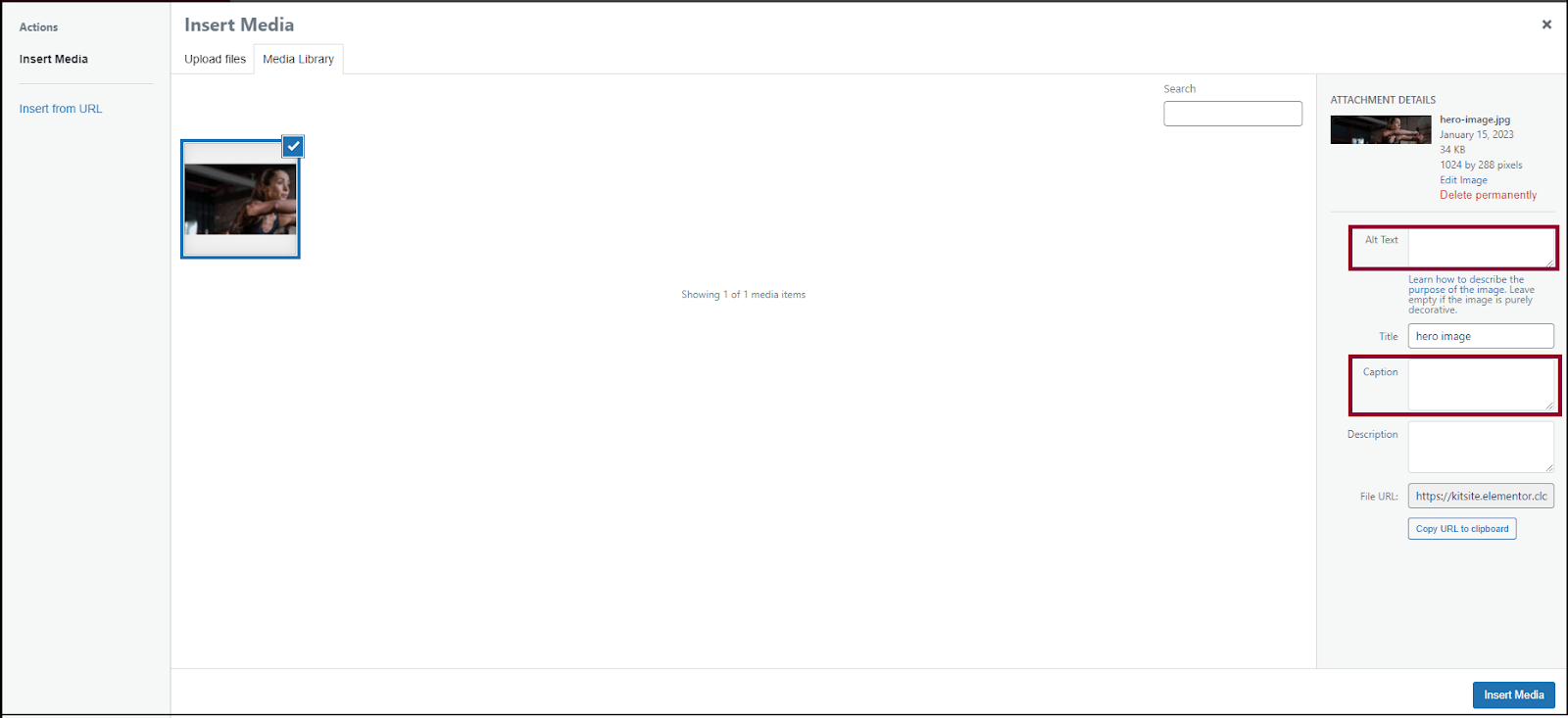
Probably doesn’t look too heroic yet does it? Let’s fix that. - We’ll change the following options:
- Position of the background image: Center-Center
- Attachment: Scroll
- Repeat: No-repeat
- Size: Cover